
Block out time off
Mark holidays, breaks and days away so those times can't be booked while you're unavailable.
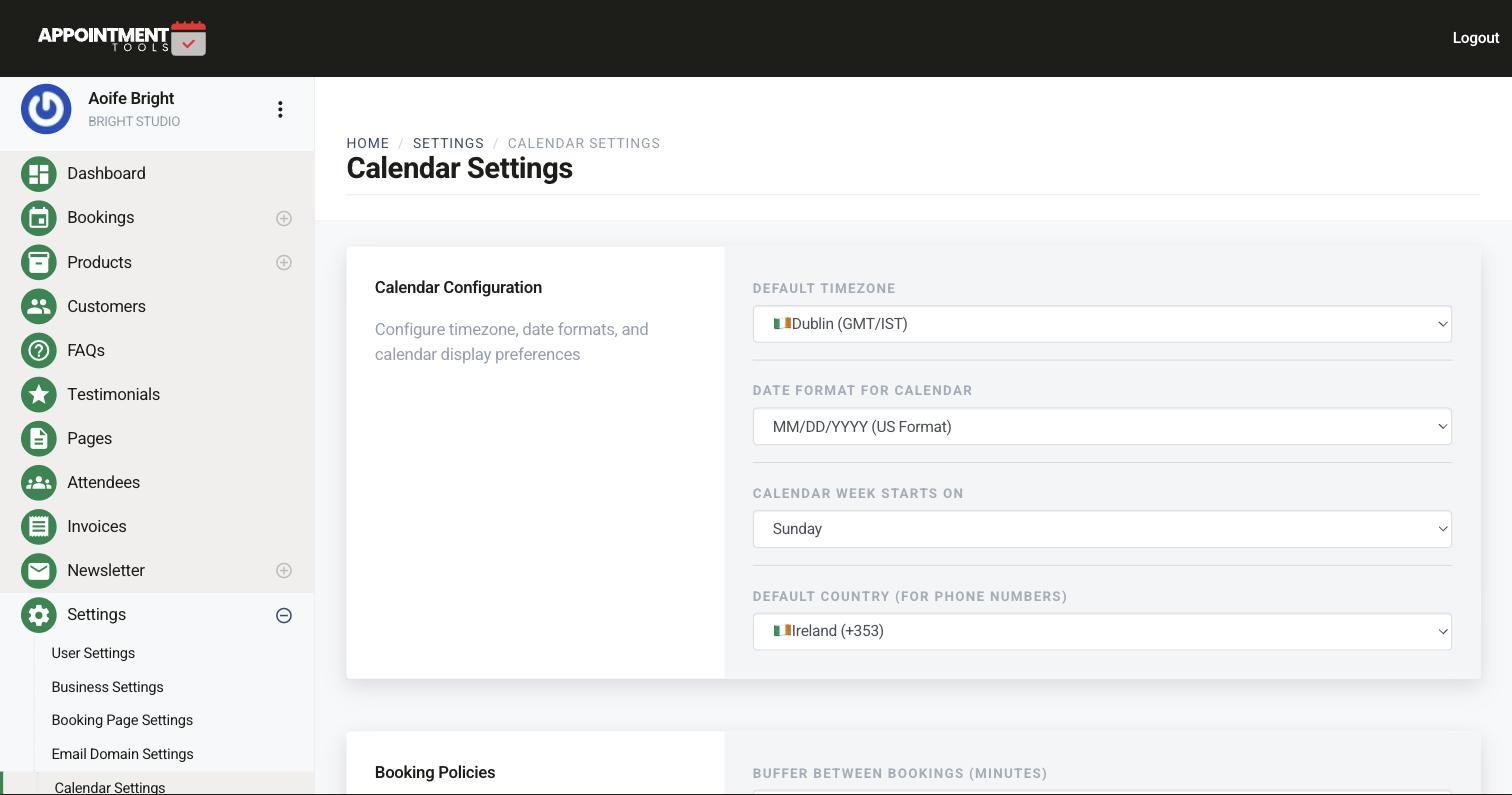
Close days in your calendar settings
For regular time off, adjust your availability in Settings → Calendar. Turn off any day you don't work, or shorten its hours for a half-day. Days you close stop appearing as bookable on your public booking page.
Where to find it
Dashboard → Settings → CalendarBlock one-off dates with a busy event
For a holiday or a single afternoon out, the easiest approach is to add a busy event to your connected Google Calendar covering that period. Because busy events block matching slots automatically, that time disappears from your booking page without any extra setup.
- Add an all-day or timed event in Google Calendar for your time off.
- The app treats that time as unavailable.
- Those slots stop showing on your booking page.
Example
Google Calendar
"Annual leave" · 12–19 Aug (all day)
Which method to use
Use your calendar settings for recurring closures like a regular day off. Use a busy Google Calendar event for one-off dates such as holidays, appointments or a long weekend. You can combine both freely.
Still need help?
Can't find what you're looking for? Send our support team a message and we'll reply by email.