
Buffers and booking window
Add breathing room between appointments and control how far ahead — and how soon — customers can book.
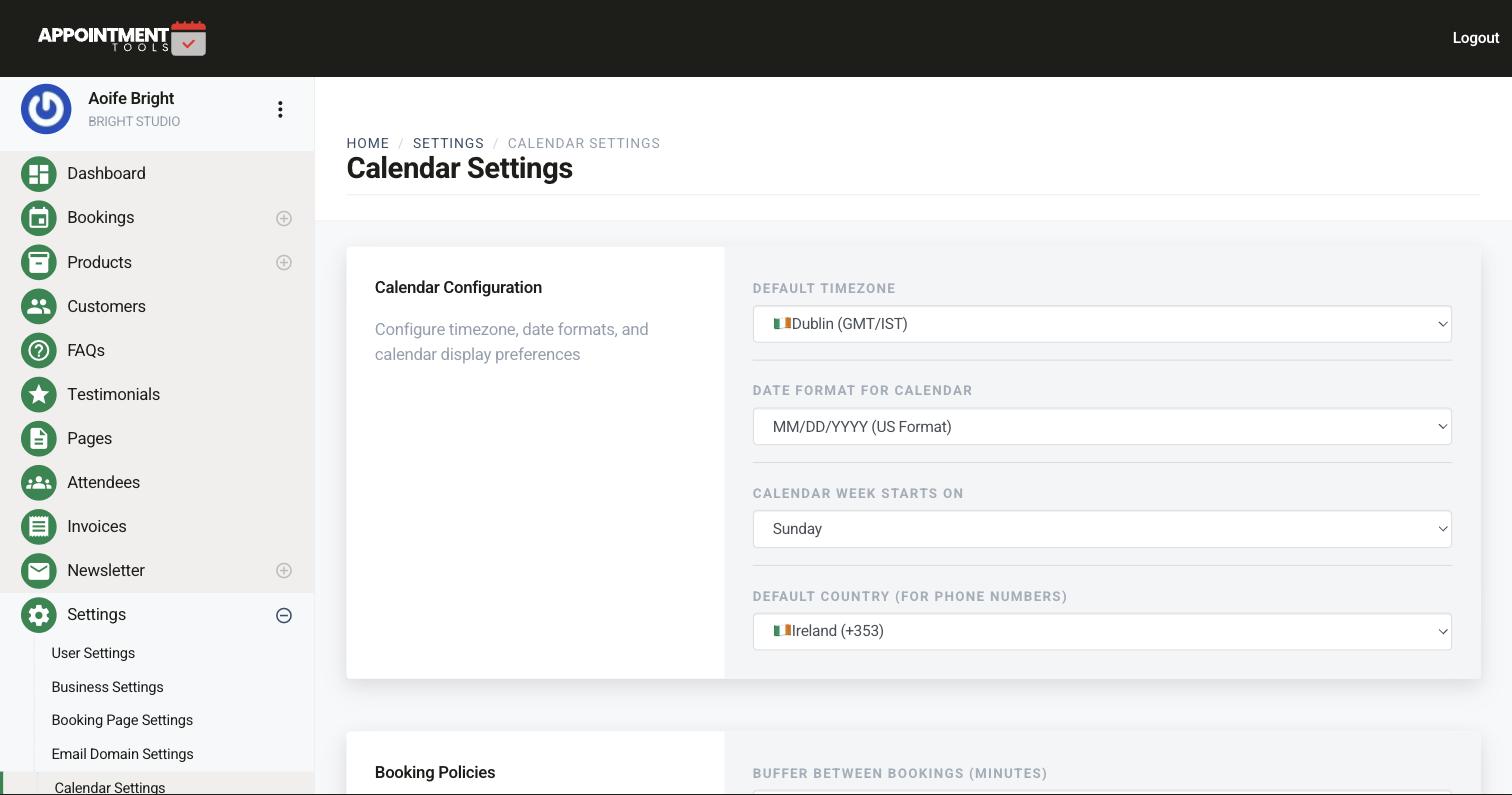
Add a buffer between bookings
A buffer is a gap the app leaves after each appointment so you can reset, travel, write up notes or take a breather before the next customer arrives. Set your buffer in Settings → Calendar and the app automatically keeps that gap clear when it offers slots.
Where to find it
Dashboard → Settings → CalendarSet your booking window
The booking window controls how far into the future customers can book. Combined with a minimum notice period, it defines the range of dates your booking page will offer.
| Setting | What it does |
|---|---|
| Minimum notice | Stops last-minute bookings by requiring a lead time before the start. |
| Booking window | Sets how far ahead people can book — for example, up to 60 days. |
| Buffer | Reserves a gap after each appointment. |
Example
Min notice     2 hours
Booking window 60 days
Buffer         15 minutes
Why minimum notice matters
Without a minimum notice period, someone could book a slot that starts in five minutes. Setting a sensible lead time — say a couple of hours, or a full day — gives you time to prepare and prevents surprise bookings you can't make.
Still need help?
Can't find what you're looking for? Send our support team a message and we'll reply by email.