
Create and switch between businesses
Run more than one business from a single login, and switch between them whenever you need to.
One login, many businesses
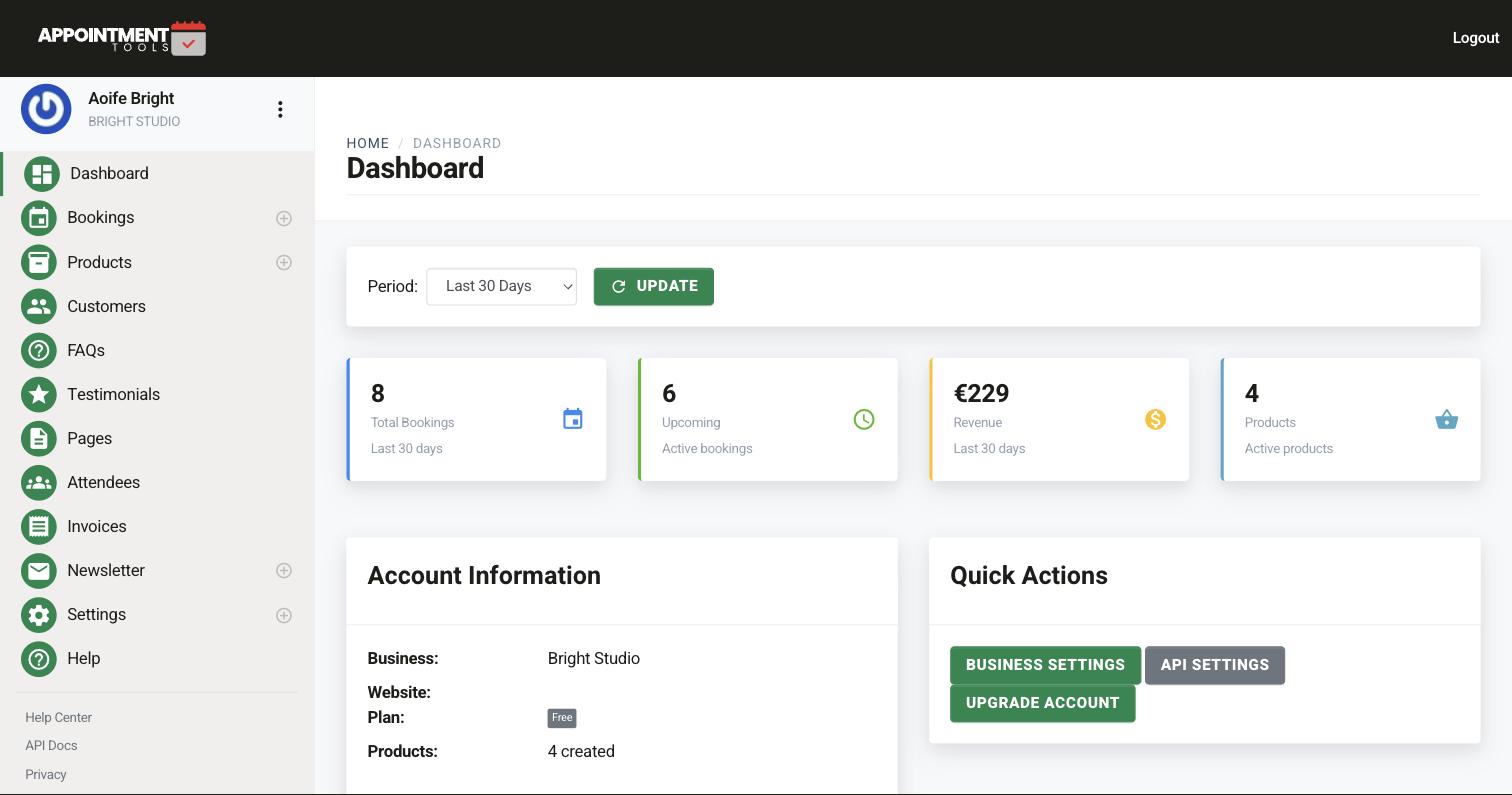
You don't need a separate account for each business you run. From one login you can manage several businesses side by side — each keeps its own bookings, services, customers and settings completely separate.
Create another business
Go to Settings → Create business and give your new business a name. It starts with a clean set of bookings and settings, ready for you to set up just like your first one.
Where to find it
Dashboard → Settings → Create businessSwitch the active business
The business you're currently working in is shown in the account menu at the top of the sidebar. Select it to see your other businesses and choose the one you want. Everything in the app — bookings, products, customers — then reflects the business you picked.
Where to find it
Sidebar → Account menu (top)Still need help?
Can't find what you're looking for? Send our support team a message and we'll reply by email.