
Google Sheets
Export your bookings to a Google Sheet and keep it in sync, so you can report, filter and share your booking data your own way.
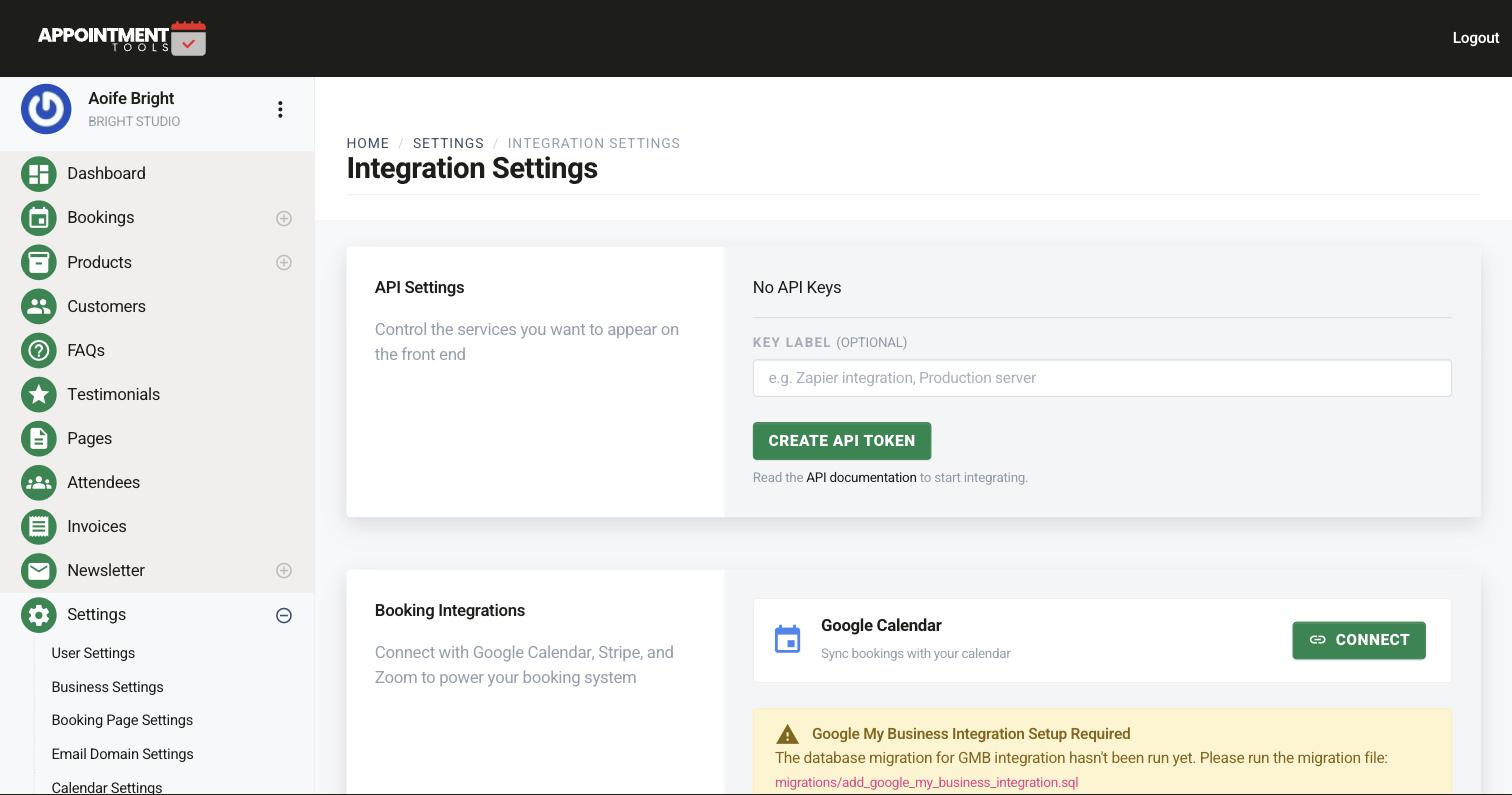
Connect Google Sheets
Go to Settings → Integration and select Connect under Google Sheets. You'll sign in to Google and approve access, then you're returned to the app ready to choose a sheet.
- Open Settings → Integration.
- Select Connect under Google Sheets.
- Sign in to Google and approve access.
Where to find it
Dashboard → Settings → Integration → Google SheetsCreate a new sheet or connect an existing one
Once connected, you can either create a brand-new Google Sheet for your bookings, or connect one you already have. Choose whichever suits how you like to work — a fresh sheet keeps everything tidy, while an existing sheet lets you slot bookings into a workbook you already use.
Bookings stay in sync
After the sheet is linked, your bookings sync to it so the sheet stays up to date as new bookings come in. You can build your own reports, charts and filters in Google Sheets on top of the data without touching the app.
Still need help?
Can't find what you're looking for? Send our support team a message and we'll reply by email.