
Customers can't book a time
When no slots appear on your booking page, it's almost always down to availability or calendar settings.
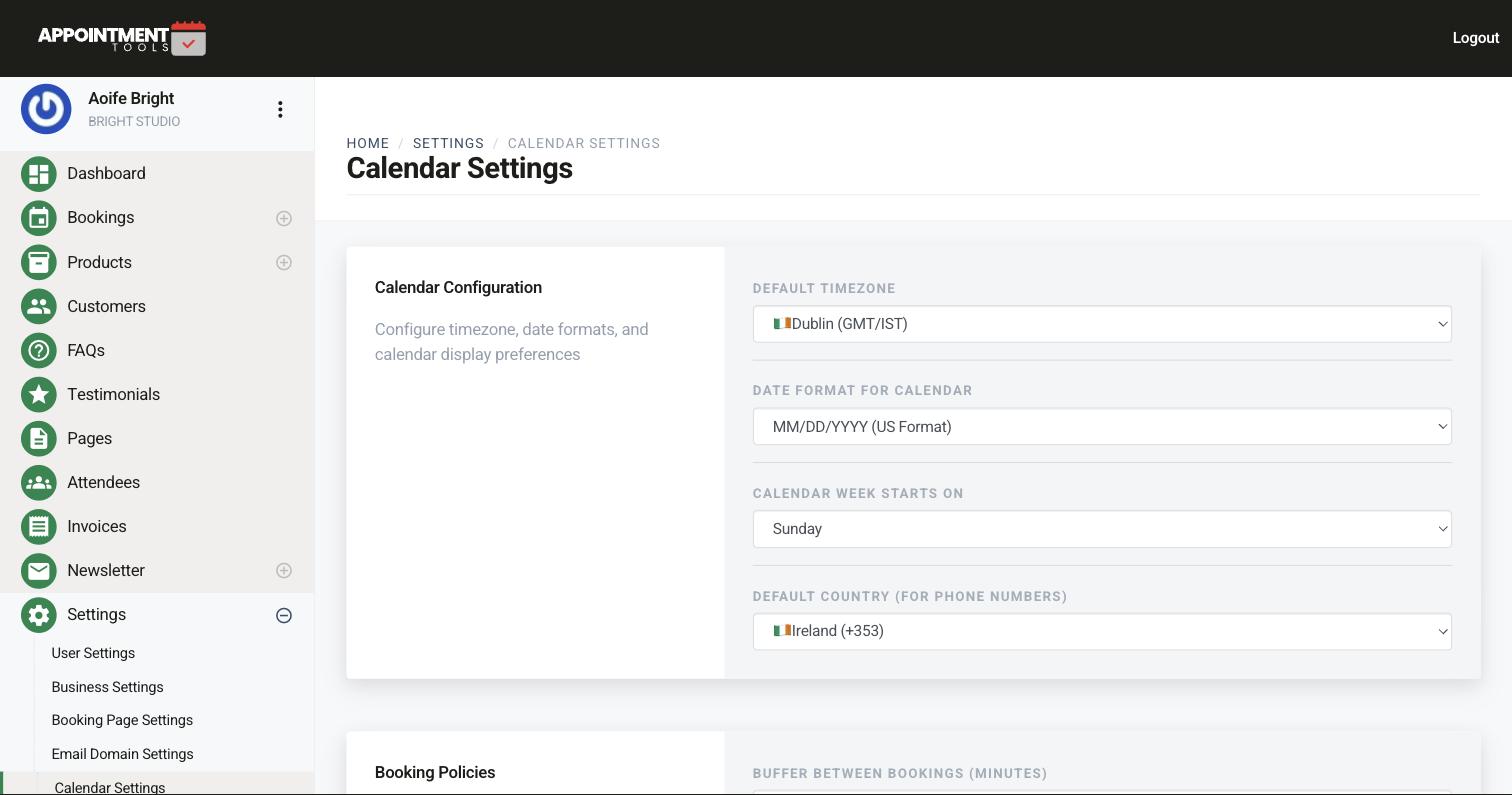
Check your working hours
Customers can only book within the hours you've made available. If your working hours are empty, closed for the day, or narrower than you expect, no slots will show. Review them and make sure they cover the times you want to accept bookings. See Set your working hours for the full steps.
Where to find it
Dashboard → Settings → CalendarCheck the booking window
Your booking window controls how far ahead customers can book and how much notice you need. If the window is very short, or the date they're trying to reach is beyond it, times won't appear. Widen the window if you'd like to offer slots further into the future.
Where to find it
Dashboard → Settings → CalendarCheck your Google Calendar sync
If you've connected Google Calendar, existing events block out the matching times so you're never double-booked. An all-day event or a calendar that's out of sync can hide more slots than you intend. Review the connection and confirm the right calendar is linked. See Sync Google Calendar.
Where to find it
Dashboard → Settings → IntegrationStill need help?
Can't find what you're looking for? Send our support team a message and we'll reply by email.