
Your profile and password
Keep your personal details up to date and change your password from your user settings.
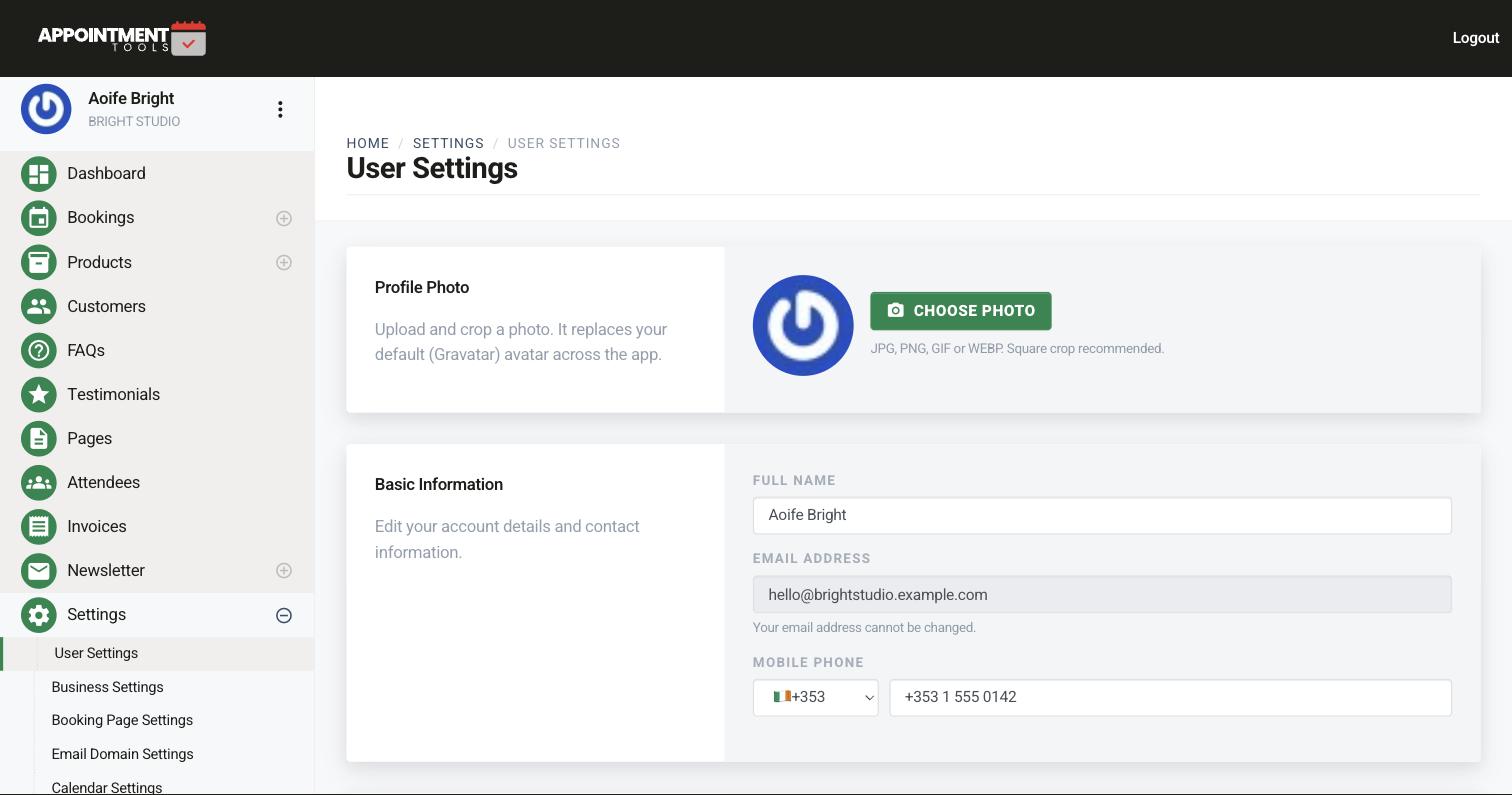
Update your name and avatar
Your profile is personal to your login and stays the same across every business you belong to. Go to Settings → User to change your name and upload an avatar. Your name appears alongside actions you take in the app, so it's worth keeping current.
Where to find it
Dashboard → Settings → UserChange your password
On the same Settings → User page you can set a new password. You'll usually be asked for your current password first, then your new one twice to confirm it. Choose something long and unique that you don't use anywhere else.
Where to find it
Dashboard → Settings → UserProfile vs business details
Your profile covers you as a person. Details about the business itself — its name, logo and contact information — live separately. To change those, see Business details.
Still need help?
Can't find what you're looking for? Send our support team a message and we'll reply by email.