
Google Calendar
Connect Google Calendar so your existing appointments block out booking slots automatically, and every new booking lands straight in your calendar.
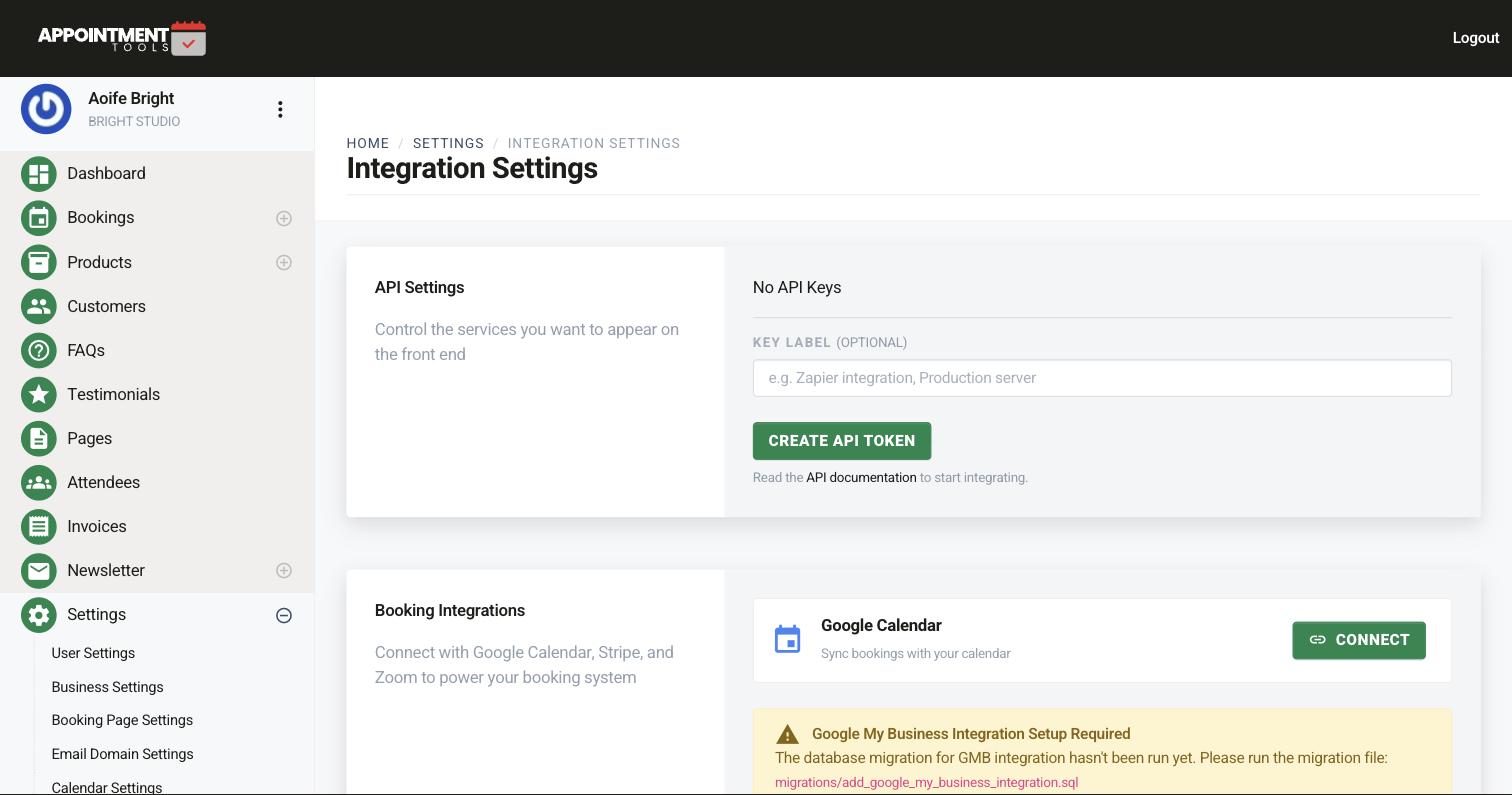
Connect your calendar
Go to Settings → Integration and select Connect under Google. You'll be taken to Google to sign in and approve access — this is the standard Google sign-in (OAuth) screen. Once you approve, you're returned to the app and your calendar is linked.
- Open Settings → Integration.
- Select Connect under Google.
- Sign in to Google and approve access.
Where to find it
Dashboard → Settings → Integration → GoogleWhat happens once you're connected
With Google Calendar linked, two things happen automatically:
- Your availability is protected. Any event already in your Google Calendar blocks out the matching time on your booking page, so customers can't book over an appointment you already have. No more double-bookings.
- New bookings are added to your calendar. When a customer books, the appointment is created in your Google Calendar with the date, time and details, so everything lives in one place.
Availability refresh
To keep things fast, we cache your Google Calendar availability and refresh it periodically rather than checking on every page view. If you've just added a busy event in Google, it may take a short while before that time disappears from your booking page. You can force an update at any time by refreshing the connection.
Manage the connection
Settings → Integration → Google
Test · Refresh · Disconnect
Test, refresh or disconnect
From Settings → Integration you can Test the connection to confirm it's working, Refresh to pull the latest availability, or Disconnect to unlink the calendar. Disconnecting stops new bookings being added to Google and stops your Google events from blocking slots.
Still need help?
Can't find what you're looking for? Send our support team a message and we'll reply by email.