
Booking page settings
Control how your public booking page looks and behaves so it feels like part of your own business.
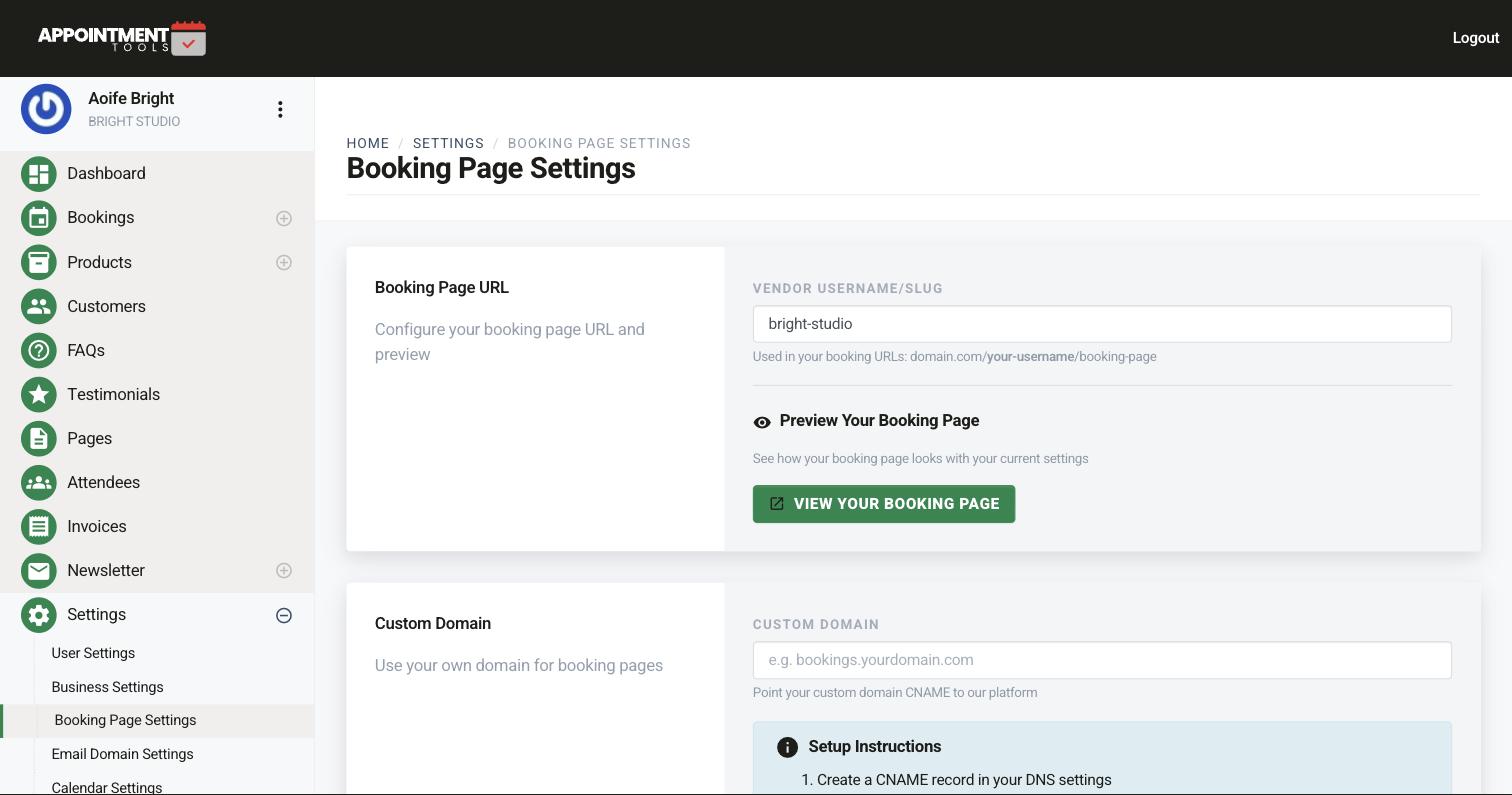
Where to manage your page
Open Settings → Booking Page to control the appearance and behaviour of the page customers use to book with you. Your live page sits at your own web address — /{your-slug} — and updates here are reflected there.
Where to find it
Dashboard → Settings → Booking PageYour page address
Your booking page lives at /{your-slug}, where the slug is the short name for your business. This is the link you share with customers, add to your social profiles, or print on cards. Individual services are reached from there too.
Example
Booking page   /{your-slug}
A service      /book/{product}
Make it your own
Adjusting these settings helps your booking page match your brand and set the right expectations for customers before they book. A tidy, on-brand page builds confidence and encourages people to go ahead and reserve their slot.
Still need help?
Can't find what you're looking for? Send our support team a message and we'll reply by email.