
Manual check-in
Mark attendees as arrived straight from your list — no scanning needed — for when someone hasn't got their QR code or you'd simply rather tick people off by hand.
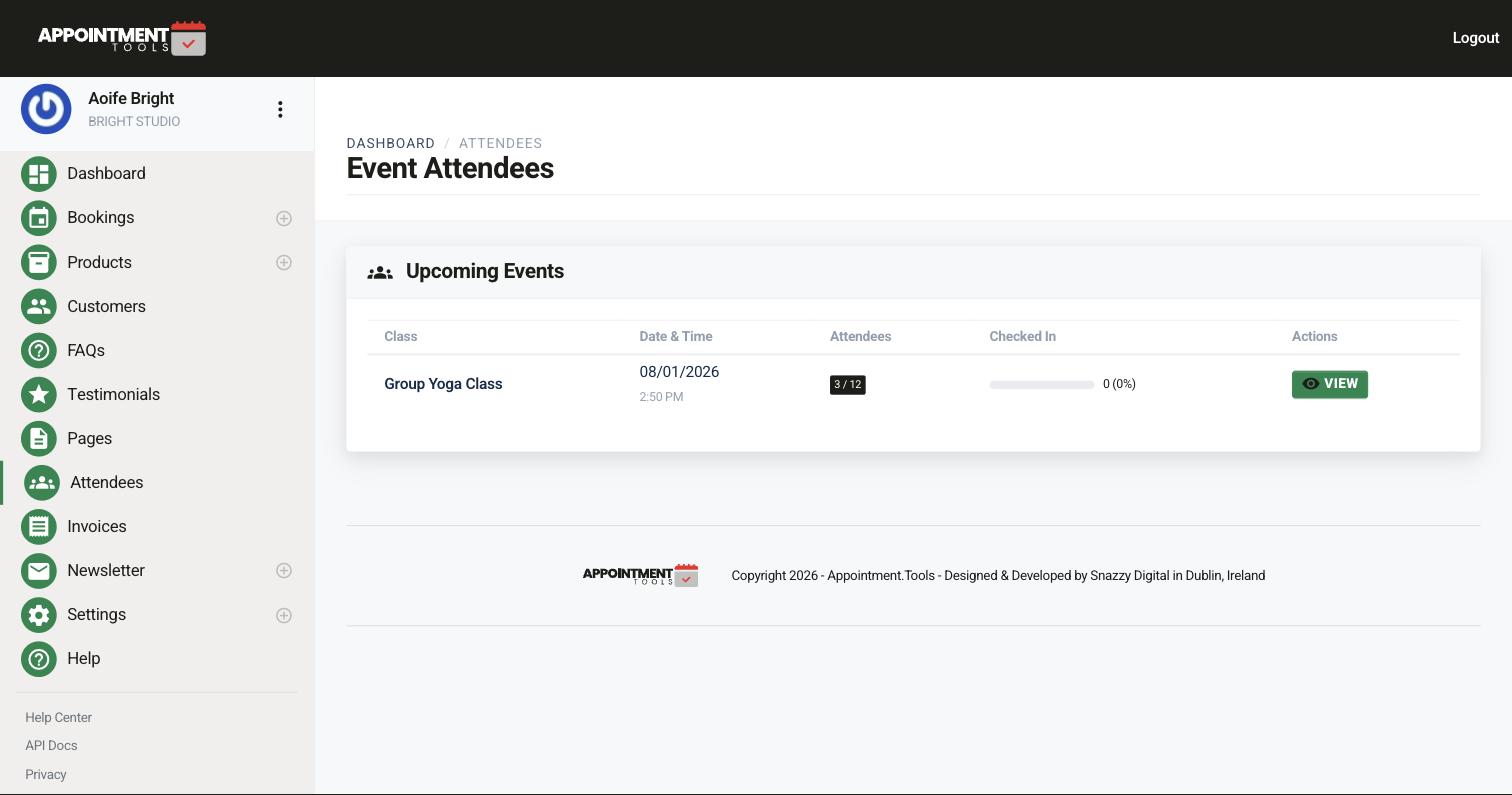
Check someone in by hand
Open your Attendees list, find the person in front of you and mark them as arrived. Their status updates immediately, so you and anyone else helping on the door always see the same up-to-date picture.
Where to find it
Dashboard → Attendees
Find name → Mark arrived
When manual check-in is handy
Marking people off by hand works well when:
- An attendee can't find their QR code or has arrived without their phone.
- A code won't scan because of poor lighting or a cracked screen.
- You're checking in a small group and it's quicker to tick names off the list.
Manual and QR work together
You can mix both methods freely in the same session — scan most people via QR code and check the rest in by hand. Either way, the arrival is recorded against the same attendee, so your totals stay accurate. For the full picture of who's booked and who's arrived, see Attendee lists.
On the day
Dashboard → Attendees
Scan QR · or · Mark arrived
Still need help?
Can't find what you're looking for? Send our support team a message and we'll reply by email.